Signing into the WCMS
This tutorial is part of a series of training materials. Visit the table of contents for more tutorials.

This tutorial is part of a series of training materials. Visit the table of contents for more tutorials.
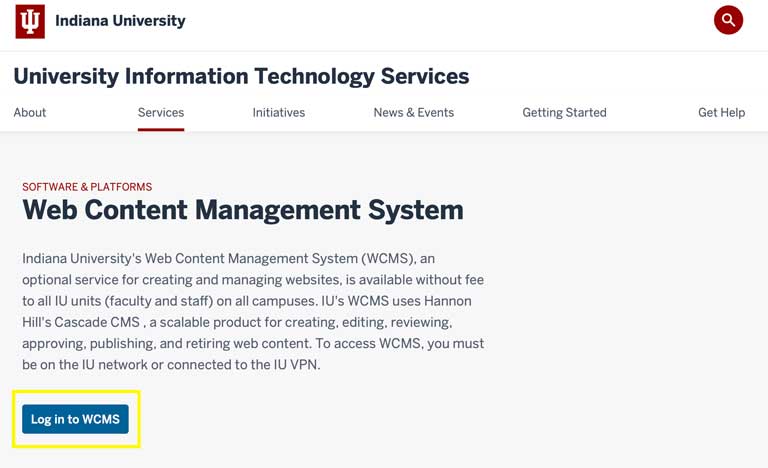
Open your browser and go to the WCMS information page. You can use any browser.
Click on the "Log in to WCMS" button at the bottom left of the page.
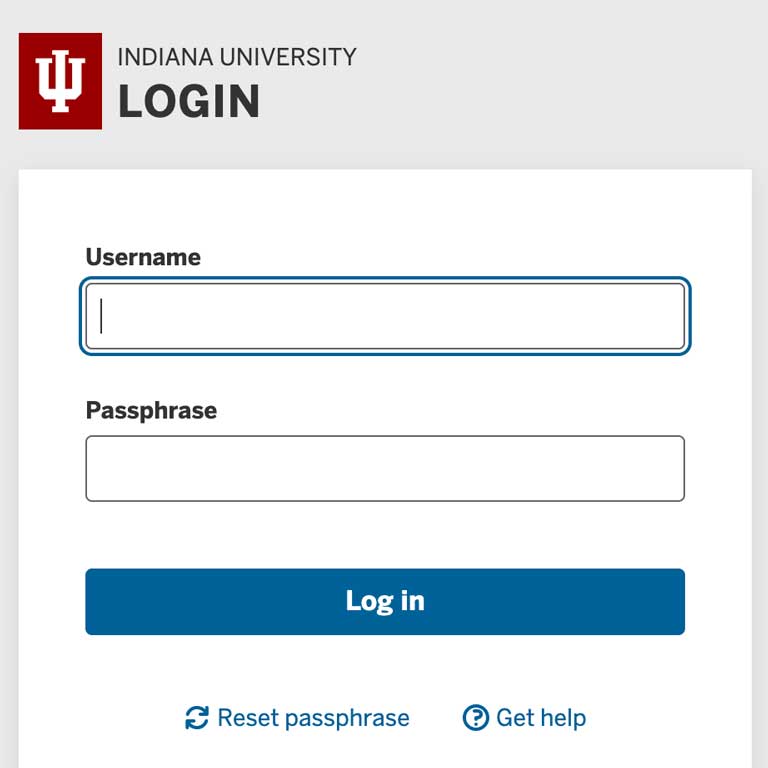
Sign in using your username and passphrase.
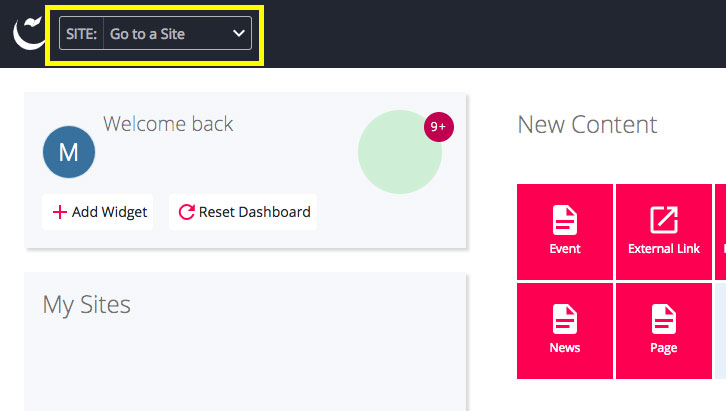
To find the website you want to work on, go to the SITE: dropdown menu at the top left of the page.
Optional: Setting your default website
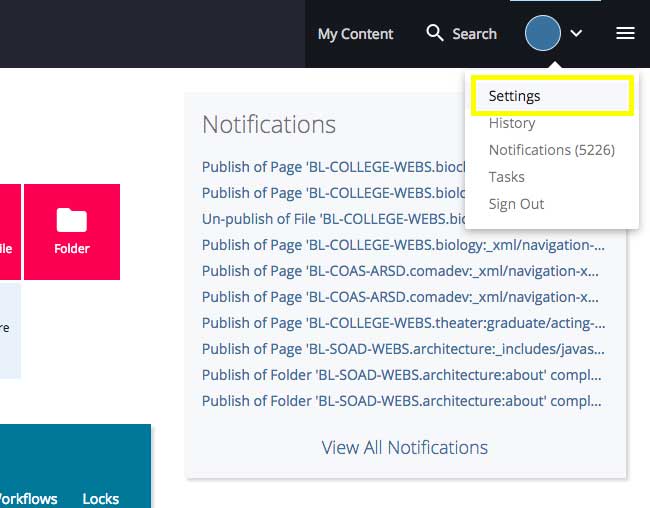
Click on the circle icon at the top right of the screen. In the drop-down menu that opens, pick "Settings."
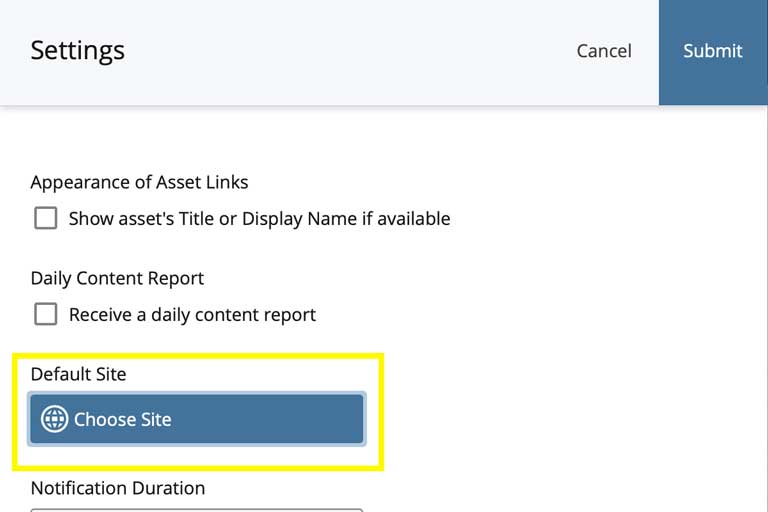
Click on the Default Site option.
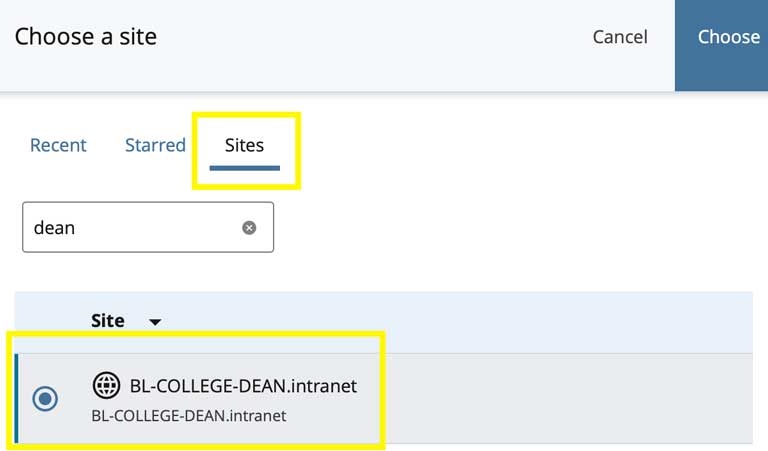
Click "Sites" and in the search bar underneath type in the name of the website you want to be directed to each time you sign in to the WCMS.
Select the correct website under "Site" and then click "Choose" in the top right corner.
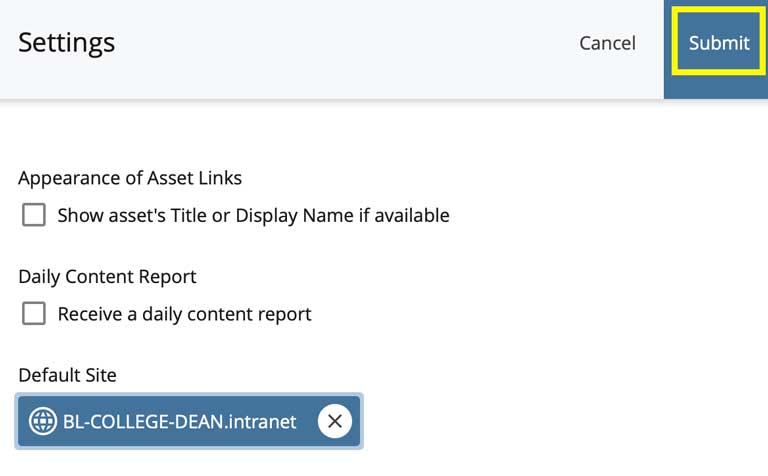
Make sure the "Default Site" is correct and click Submit. Now, every time you sign in to the WCMS, you will be directed to the Default Site you chose.